

If you own another email address, you can send mail as that address. This address can be an alias connected to your account or any other email you have access to. We call that a Send as address.
In SignatureSatori, you can set different signatures for each Send as address you have in your Gmail. Please take a look at how to add another send as address under your account.
How Send as address looks like in Gmail
If you have Send as address added in your Gmail (instructions below), you can choose what email you will use for replying or creating a new message.
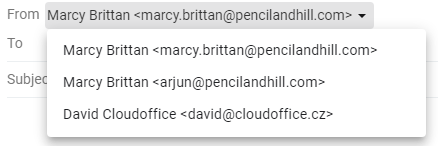
If you don’t want to select the proper address every time you response to an email, please choose Reply from the same address the message was sent to after you succeesfully set-up the address.

How we treat Send as addresses in SignatureSatori
Whether your Send as address is an alias or another email address, as a SignatureSatori administrator, you can choose what addresses will be added to the list of users.
Please check out our help page for more instruction.
You can set different signatures for each email. Every Send as address is treated as a different user.

How to set Send as address in Gmail
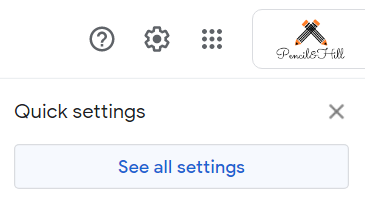
1 – Click on the Settings button and choose See all settings.
2 – Go to Accounts tab.
3 – Find Send mail as section and click Add another email address.

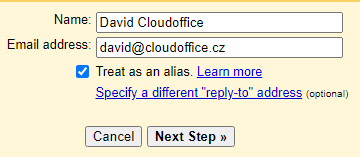
4 – In the followed pop-up window insert the different address you want to Send as.
Decide whether you want to treat it as an alias or not.
Click Next Step
5 – As the next step, insert the SMTP server, username (email address), and password.
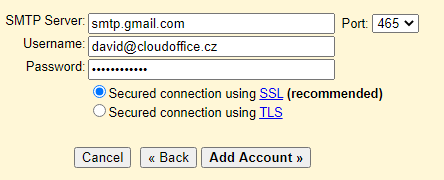
If you are trying to add Google Workspace address, insert smtp.gmail.com and choose SSL connection with port 465.
When you are done, click Add Account.
If there is an error Authentication failed, check if less secure apps are turned on for the Google Workspace email you are trying to add.

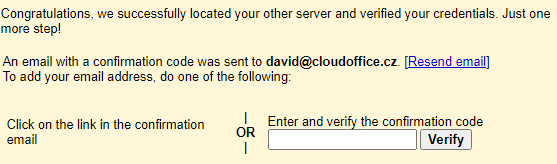
If you add an address outside your domain, an additional verification is required.
6 – If you were successful you will see this email address under the list of Send as addresses
